Squarespace Websites: Google Workspace Setup Tutorials with Custom Email Address
Published April 2026
If you’ve launched your new Squarespace website and want to create a Google Workspace and custom email address that matches, you’re in the right place.
These resources walk you through how to setup your initial Google Workspace and custom email address using a simple, stress-free approach. Because we have clients to serve and businesses to run and we DO NOT want to get stuck in all the tech for days-on-end. 🫣
Now, let’s dive in. ✨
First: Do you really need a new email address?
I have seen a lot of very successful business owners, therapists and coaches keep their old email address after a rebrand and skip the hassle of creating a new one.
I also have clients that have always used an “@gmail.com” address and they are happy as a clam 🤠.
So if you’re on the fence about creating a whole new email address, here’s your permission slip to skip this task all together.
A custom email that matches your domain does NOT determine the success of your business or annual income. It’s just one of those superficial business to-dos that can make you “feel” really nice and legitimate but isn’t always a “must-have”.
If it’s important to you to have that matching domain and new Google Workspace… keep reading!
What exactly is Google Workspace?
Let’s break down all the pieces here: A “domain” is something you purchased for your website that determines what your URL is. My domain is “sundaistudio.com”, and so if I was looking to create an email that matches I might want to choose “info@sundaistudio.com”. To create a custom email address I will be signing up for a Google Workspace. This Google Workspace (formally named Gsuite), will have many apps inside of it. Email (or Gmail) will be the main one you utilize. But you’ll also get access to Google Docs, Google Sheets, Video Calls, Cloud Storage, Analytics and so much more. Google Workspaces typically ranges from $4-$13 a month — it includes your email and all of those apps.
So if you’re looking for a custom email, what you’re actually going to purchase is “Google Workspace”.
If you purchased your Domain through Squarespace, here’s how to setup Google Workspace through Squarespace:
How to purchase Google Workspace through Squarespace:
Directions:
You’ll want to login to Squarespace and open up your website.
Click the gear icon on the bottom left side panel.
Select Domains & Email.
Select Google Workspace.
Select your plan (for most clients, I suggest starting with Starter and then upgrading if you end up needing it).
Follow the prompts, select your new email address and confirm the purchase.
If you’re eligible for a free year, it will show up automatically on the Checkout Page.
The Youtube video below can be helpful to watch too! It walks through how to signup for your new Google Workspace and create a custom email address right through Squarespace.
In this video tutorial the host discusses where to find “Your MX records” - If you purchased your domain through Squarespace you do not need to do anything with these. If you used GoDaddy or another domain provider to purchase your domain you will need to grab this data and “paste” it into your domain provider’s website. I always suggest, in this instance, getting support from the Support Team with your domain provider (GoDaddy for instance) as they can easily walk you through where exactly to paste in that data.
Squarespace also offers 1 free year of Google Workspace to eligible customers.
This offer is eligible for websites on higher subscription tiers with custom domains. You can learn more about claiming this right here >
If you’re eligible for this, it should appear organically at the end of the signup process on your checkout page. 🥳
If you did not purchase your Domain through Squarespace, read these directions to setup Google Workspace through Squarespace:
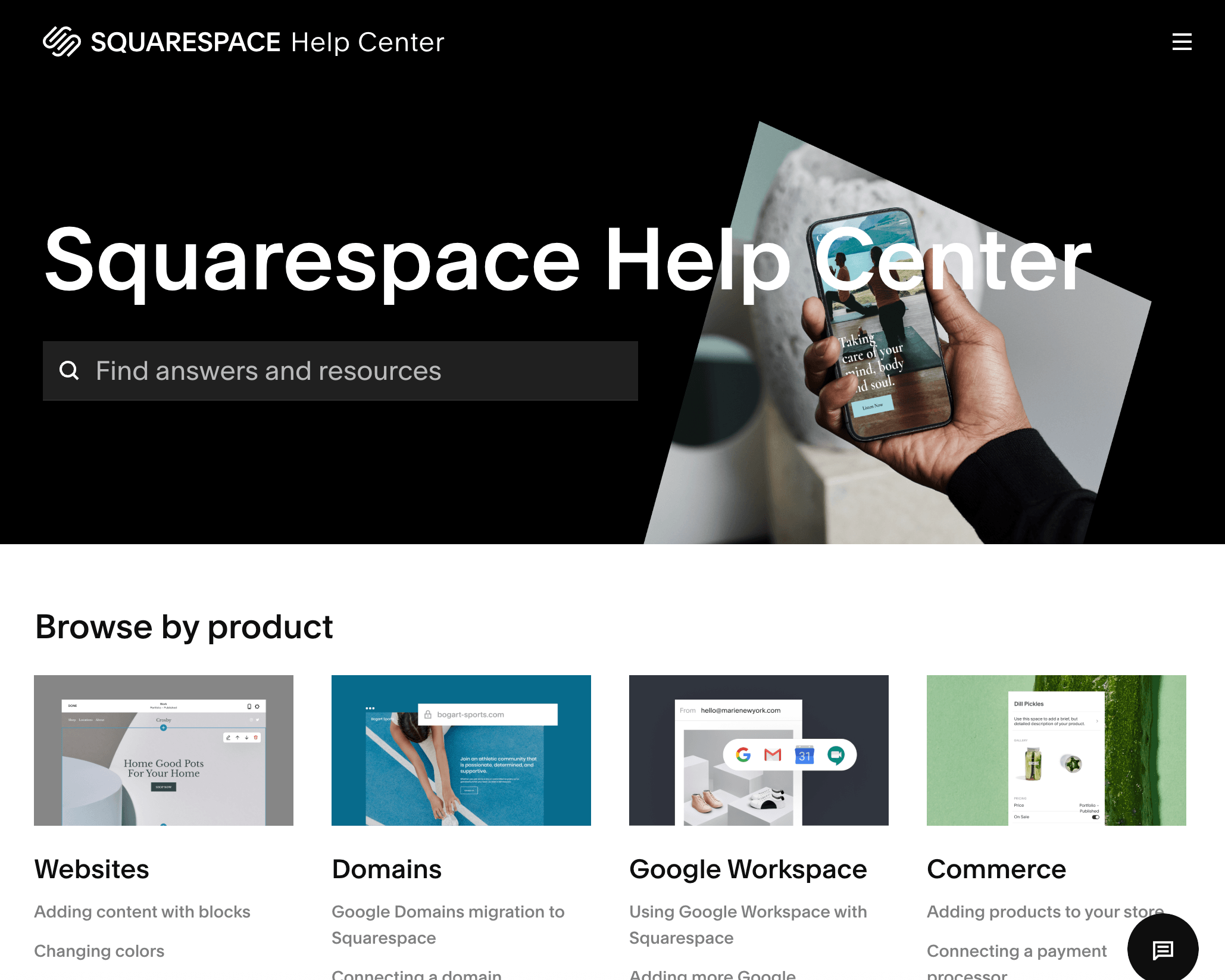
The Squarespace Help Center is always going to be a great resource for you. If you’re ever googling a specific techy tutorial and you add “Squarespace” at the end of your search queue you’ll most likely find a wonderful easy-to-understand human on YouTube or written directions straight from the Squarespace forums.
You can also seek out Support from your direct Domain Provider!
From Squarespace: How to setup Google Workspace >
Troubleshooting through Squarespace for your Google Workspace:
Fill out a Support Ticket through Squarespace if you’re having trouble.
You can also explore the forums + Chat with Squarespace Assistant chat bot >
In the bottom right corner you can also try chatting with the Squarespace Assistant Chat to resolve any issues.
What if you already have an existing Google Workspace with an old email address?
Do you just cancel it? Transfer content?
Here’s the thing: I’m not a professional Developer or IT Specialist, so my approach with anything techy like this is always to keep things as easy and simple as possible. 🤓
My stress-free approach:
I would recommend creating your new Google Workspace, and keep your old one for a while until your yearly subscription runs out or you have transferred all of your necessary files to your new Google Workspace (these might be google docs, google sheets, call recordings, client folders etc.).
By purchasing a new email address and Google Workspace you are essentially buying a new plot of land on a google server and you are choosing to “keep” your old plot of land for a while as you move all of your furniture and build your “new house”.
This approach is less stressful 🤩 because you can take your time to transfer any pertinent files.
For your new email, login to your new gmail and start manually re-creating your folders (or however you organize your emails). Forward any super important emails from your old email address and start using your new email address for any new clients. Let your old clients know that you have this new email address and ask them to start using that one. This process again is a slower approach as your community gets used to using your new email address but it’s way less risky as you always have access to your old emails if you ever need to reference anything. After a year or so that transition should have successfully happened and you can simply stop using that old email address. At that time you can downgrade your plan, cancel any subscriptions you’re no longer using and even delete your account >
If you’re troubleshooting anything with Gmail and Google Workspace, here’s a link to Contact google Workspace Support >

That’s it! Whether you’re a client reading this or you’re someone on the internet looking for some guidance, I hope this blogpost feels supportive for wherever you are in the process.
If we haven’t met yet, I’m Jena Thielges a Brand and Website Designer. I specialize in working with women who are coaches, therapists, healers and service providers. Founded in 2019 on seven years of agency experience, Sundai Studio is more than a brand and web design studio—it’s your energy, embodied in design. Because even your branding should feel aligned.
Check out my offers here and get in touch if you’re ready to book a free consult call!
Y O U M A Y A L S O E N J O Y …